How to Submit URL How To Submit URL: windows 7

Showing posts with label windows 7. Show all posts

Run command, which has been present in Windows since Windows 95, is a nifty feature to quickly launch programs and admin tools right from the desktop area without having to navigate to the Start menu/screen or Control Panel. For instance, as you likely know, we can quickly launch Programs and Features window by typing appwiz.cpl in the Run dialog and then hitting enter key.
When Windows 7 was released back in 2009, the Run command was missing from its original location, the Start menu. For reasons best known to Microsoft, the Run was not present in the Start menu with default settings. However, it was possible to restore the Run command by changing appropriate settings under Start menu customization settings.

Even though many users prefer launching Run command by navigating to Start menu in Windows 7, the best way to launch Run command is by simultaneously pressing Windows and R keys. While Start menu has been dropped from Windows 8/8.1, this hotkey works under Windows 8 and Windows 8.1 versions as well.

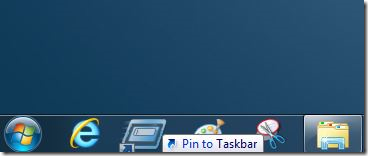
If for some reason, you prefer launching Run command using the mouse instead of hotkey, you can easily pin Run shortcut to the Taskbar so that you can quickly access the same without having to open the Start menu. And if you’re running Windows 8/8.1 on a tablet, pinning Run command to the taskbar will certainly save you some time.

Create Run shortcut on desktop and pin it to taskbar

Follow the given below instructions to pin Run command to the taskbar in Windows 7/8/8.1:
Step 1: When you’re on desktop, perform a right-click, click New, and then click Shortcut to open Create Shortcut wizard.

Step 2: In the Type the location of the item box, paste the following location:
C:\Windows\explorer.exe shell:::{2559a1f3-21d7-11d4-bdaf-00c04f60b9f0}
Note that we assume that “C” is the drive letter of your Windows installed partition. If you have installed Windows on any other drive, please replace “C” with your drive letter. For instance, if Windows is installed on “E” drive and the replace “C” letter with “E”.

Click Next button to proceed to the next step.
Step 3: Enter Run in Type a name for this shortcut box and then click Finishbutton to close the wizard and create Run command shortcut on the desktop.

tep 4: You can skip to the next step if you don’t want to customize the default icon of the Run command shortcut. To customize the default icon, right-click on the Run shortcut on your desktop, click Properties, under Shortcut tab, click Change icon button, paste “%SystemRoot%\System32\imageres.dll” (without quote) in the box, press enter key, select the default Run command icon, and then click OK button.


Step 5: Finally, drag and drop the newly created Run command shortcut to the Taskbar to pin the same to the taskbar. That’s it!



How To Create Live USB To Backup Files

Posted by Dilshan On 4:51 AM 25 comments
Is your PC unbootable? Do you want to backup data from unbootable PC? Would you like to backup Windows and other data from your PC without booting into Windows? Worry not; you can easily backup your data from unbootable computers.
About two years ago, we talked about backing up data from unbootable computers with the help of Windows installation media. If you have a Windows installation DVD or USB, that’s the easiest way to back up your PC and you don’t need the help of third-party tools. About a year ago, we reviewed an application called Redo Backup, a free bootable CD/DVD that can be used to backup data from unbootable computers. Today, we are here to share another awesome program to backup data even if your PC isn’t bootable.

You probably have used or at least heard about the free version of Paragon Backup and Recovery. The good news is that the latest version of Paragon Backup and Recovery allows you create a live USB drive containing utilities to easily backup and recover data from unbootable PCs.

Paragon Backup and Recovery 2014 Free includes recovery media builder with WinPE support. In short, you can use the WinPE-based rescue media to access and backup files even from a unbootable computer.
With the help of live USB recovery media, you can backup an entire hard drive or partition to a virtual disk container, restore data from virtual disk, perform incremental backup to virtual disk, and backup files to a special secured place (called capsule). Besides, you can backup files to external drives and networked locations as well.

Create live USB containing backup and recovery tools

Creating the live USB is relatively easy. Simply follow the given below instructions to create your live USB.
Step 1: Visit this page of Paragon and download Paragon Backup & Recovery 2014 Free. Note that separate downloads are available for 32-bit and 64-bit Windows. Be sure to download the right version to avoid issues.
Step 2: Run the downloaded setup file and follow the simple on-screen instructions to get it installed.
Step 3: Connect your USB drive that you want to prepare as live USB drive and please backup all data before proceeding further.
Step 4: Launch Paragon Backup and Recovery Free 2014. On the home screen (yes, it looks similar to the Start screen) click on the tile labelled Recovery Media Builder to launch RMB wizard.

Click Next button to continue.
Step 5: Here, select either Microsoft Windows PE or Linux as recovery media platform and then click Next button to proceed to the next step.

Step 6: Finally, select your USB flash drive before clicking the Next button to begin creating live USB drive containing Paragon Backup and Recovery tools. Once your live USB is ready, you’ll see “You have successfully created the recovery media” message. That’s it!


In order to boot from live USB, your PC should support booting from USB and you need to enable the same under BIOS/UEFI. Go through our how to boot from USB and how to boot from USB drive even if your PC doesn’t support booting from USB guide for detailed instructions.


Site search

Share